Notepad - Notes and Notebook
notesTools
4.08.38K Reviews
- Version
- 1.55
- Installs
- 10.00M
- Age Rating
- Everyone
Screenshots
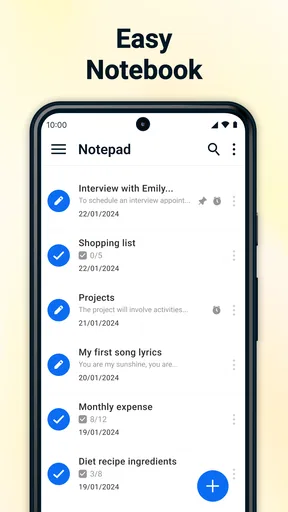
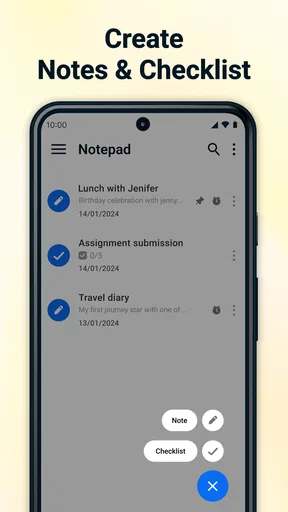
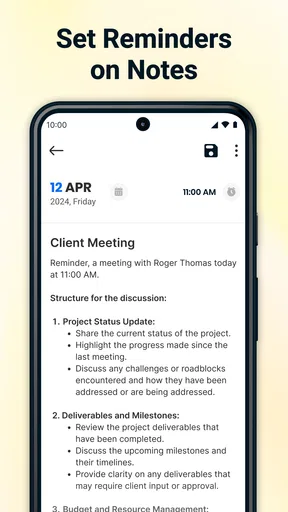
Our Review of Notepad - Notes and Notebook
 Analysis by Appyee
I often need to write something down at the exact moment my hands are busy, my attention is elsewhere, or a phone call has just ended. The problem is rarely finding a place to type. It is remembering where I put the note later, separating a quick reminder from a shopping item, and turning a messy thought into something useful without spending more time organizing it than writing it. Notepad - Notes and Notebook is built around that small but constant problem.
After using it as a lightweight writing tool, I found its appeal easy to understand. It does not try to become a full project-management system or a complicated digital journal. Instead, it gives everyday notes, to-do lists, grocery lists, and after-call reminders a simple home. That focus makes it a practical Android notes app for people who want to capture information quickly and return to it without a steep learning curve.
The app is free, suitable for Everyone, and comes from the developer notes. It has reached over ten million installs, with an average rating of 4.0 from roughly seventy-three thousand ratings and around eight thousand reviews. Those figures suggest a tool that has found a broad audience, although they also set a reasonable expectation: this is a straightforward utility, not a replacement for a complete productivity suite.
Why a simple notepad can save more time than a bigger productivity system
I’ve found that a lightweight notepad is most useful when it helps me capture a thought before I’m tempted to sort, label, and schedule it. In this section, I’ll look at why keeping that first step simple can make everyday information easier to recover, then turn to the habits that make a small notebook work well.
The recurring problem is not writing; it is recovering the information
A note-taking app earns its place on my phone when it reduces the number of small decisions between having an idea and recording it. If I have to choose a notebook, a project, a label, a reminder type, and a formatting style before I can write, the system becomes a delay. For a phone number, a product to buy, or a short instruction from a call, that delay is unnecessary.
This app works best when I treat it as a landing place for short-lived information. I can put down the thought first and decide later whether it deserves more organization. That is a useful distinction from feature-heavy alternatives, where every note can feel like the beginning of a filing project.
The store summary specifically positions it for notes, to-do lists, grocery lists, and after-call note-taking. In practice, those use cases fit together naturally. A normal note can hold an idea, a checklist can handle errands, and an after-call entry can preserve the details that are easiest to forget once the conversation ends. The value is not in making any one of these activities sophisticated; it is in keeping them close enough to everyday phone use that I am more likely to record them.
A first setup that stays deliberately small
My advice is to resist the temptation to build a complicated structure immediately. Start with three kinds of entries: a general note for loose information, a task list for actions, and a grocery list for items that need to be checked off while shopping. This separation is enough to make later retrieval easier without turning the app into another chore.
For notes that are likely to grow, I use a clear first line rather than a vague title. “Questions for dentist” is more useful than “Tuesday,” and “Kitchen measurements” is easier to recognize than “Important.” This is a small habit, but it matters in a basic notepad because the quality of retrieval depends heavily on how specifically I name the entry.
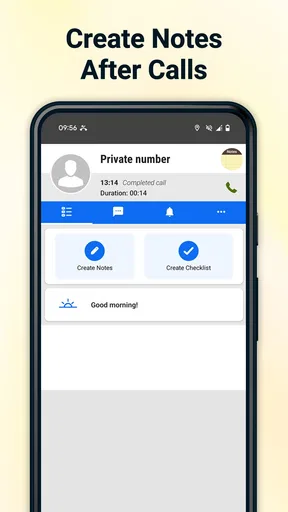
After-call notes deserve their own routine. As soon as a call finishes, I write the person or subject first, then the promised action, then any date or detail I must not lose. For example, “Internet provider — send meter photo — check reply tomorrow” is more useful than a paragraph copied from memory. The app’s after-call focus makes this workflow feel intentional rather than like an improvised use of a blank page.
One practical trade-off is that a lightweight notebook rewards personal consistency. If I use random wording, leave half-finished entries everywhere, or mix shopping items with long-term ideas, the app cannot make those distinctions for me. That is not necessarily a flaw, but it means the best results come from a few repeatable naming habits.
How I use it during an ordinary day
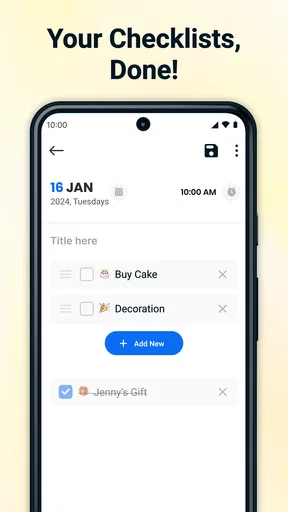
Imagine a weekday morning when I notice that the kitchen is running low on coffee, detergent, and batteries. I can put those items into a grocery list rather than scattering them across messages to myself. Later, while shopping, the list becomes a sequence of small decisions: check an item, move on, and avoid relying on memory.
In the afternoon, a phone call brings several pieces of information at once. Someone asks me to send a document, mentions a follow-up, and gives me a detail I will need later. Instead of trusting my memory after hanging up, I use an after-call note and write the action in plain language. The useful part is not the writing itself; it is that the next step is visible when I return to the app.
In the evening, I might use a regular note for a rough plan for the next day. This is where I prefer the app to a messaging conversation with myself. A self-message is easy to bury under newer messages, while a dedicated note keeps the thought in the same place as the rest of my personal reminders.
Another good use is temporary information that does not deserve a permanent document: measurements for furniture, a list of questions before an appointment, a few gift ideas, or instructions someone gives me over the phone. I do not need formatting or collaboration for these tasks. I need low friction and enough structure to find the information again.
Small workflows that remove repeated friction
The first non-obvious advantage is the separation between an ordinary note and a checklist. I do not use a checklist merely because a list looks tidy. I use it when completion matters. A grocery list should let me see what remains, while a note about a recipe or a repair can stay as text. Mixing both formats makes each one less useful.
The second is treating after-call writing as a capture window rather than a category I visit occasionally. Calls often create obligations that are not visible in a calendar: send a photo, compare a document, ask another person, or wait for a reply. Recording the action immediately prevents the common mistake of remembering the conversation but forgetting what it required.
The third is using short notes as temporary buffers. I can place an idea in the app without deciding whether it belongs in a calendar, a long document, or a task manager. Later, I can clean it up or remove it. This two-stage workflow saves time because capture and organization happen at different moments, when I have different levels of attention.
A fourth useful habit is writing the next physical action instead of a broad intention. “Sort paperwork” is difficult to act on; “find the insurance letter” is clearer. A basic app will not automatically break down a project, so the wording of the note becomes the tool. For quick personal organization, that can be more effective than adding labels that I never revisit.
There is also a reliability benefit in keeping the app’s role narrow. I am less likely to forget where a simple note belongs when I reserve this tool for personal capture and short lists. If I use it for every kind of information, including research, shared projects, and reference material, its simplicity becomes harder to manage. The app saves time when I give it a defined job.
Where it sits beside familiar alternatives
Compared with a paper notebook, this app is easier to keep with me and better suited to checklists that change during the day. Paper can still be better for sketching, long handwriting sessions, or people who think more clearly away from a screen. For quick typed reminders, however, a phone-based notepad avoids carrying another object and makes after-call capture more immediate.
Compared with a messaging app used as a private inbox, a dedicated notes tool keeps personal information away from conversations. That makes the purpose clearer and reduces the chance that a note disappears beneath newer messages. The trade-off is that a messaging app may already be open and familiar, so someone who only writes one reminder a week may not notice much difference.
Compared with a full task manager, this app is less demanding and faster for simple lists. A task manager is the better choice when I need recurring deadlines, dependencies, reminders, shared assignments, or a detailed project view. Notepad - Notes and Notebook makes more sense when the main goal is recording and checking off information, not managing a complex workflow.
Compared with a document editor, it is better for short, disposable writing and worse for polished documents, extensive formatting, or collaborative editing. I would not choose it for a report or a shared plan. I would choose it for the notes that help me prepare before that report or remember what needs to happen afterward.
What may slow you down
The same simplicity that makes the app approachable also creates limits. People with large archives may want stronger organization than a basic notebook provides. If I expect automatic sorting, advanced search, deep tagging, or a sophisticated knowledge system, I may eventually outgrow it. A simple capture tool cannot replace a structured workspace for every kind of information.
It is also not the ideal choice when several people need to edit the same list. A shared household list, team assignment, or collaborative project usually benefits from an app designed around multiple users. This one is most comfortable as a personal tool, where I control the wording and the cleanup.
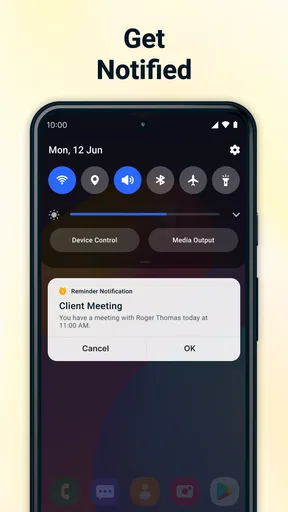
Another limitation is that the app depends on my discipline for follow-through. Writing “call the clinic” does not create the same safety net as a dedicated reminder with a scheduled alert. For time-sensitive commitments, I would move the action into a calendar or reminder system rather than assume that a note alone will bring it back to my attention.
People who want a visually rich journal may also find it too plain. The strength here is speed, not expressive presentation. If photos, elaborate layouts, extensive formatting, or long-form archiving are central to the experience I want, a different note platform will probably feel more complete.
Version, access, and who should choose it
The current version is 1.55 and requires Android 10 or later. That makes the app relevant to users on reasonably modern Android phones, while anyone using an older system should check compatibility before planning a move. It is free, which lowers the cost of trying it for a few days with real routines rather than judging it from a description.
I would recommend it to someone who repeatedly loses short reminders, wants a separate place for grocery items, or needs a quick habit for recording actions after calls. It is especially suitable for users who prefer plain tools and do not want to learn a complicated productivity method before writing their first note.
I would point someone elsewhere if they need a shared workspace, detailed project planning, scheduled task automation, or a large research archive. In those cases, the extra structure of a dedicated productivity or collaboration app is not unnecessary overhead; it is the feature that prevents important information from becoming a pile of notes.
My verdict after using it as a daily utility
Notepad - Notes and Notebook succeeds by addressing a recurring, unglamorous problem: small pieces of information disappear when there is no obvious place to put them. Its best moments are quick ones—capturing a promise after a call, checking off groceries, or writing a thought before it gets interrupted. Those moments add up because the app asks for very little effort.
I would not describe it as a complete productivity environment, and I would not want it to become one. Its usefulness comes from staying close to the basic job of writing and retrieving everyday information. The key is to use it deliberately: keep lists action-oriented, name notes clearly, and transfer genuinely time-sensitive tasks to a reminder system.
For me, the final test is whether a utility removes more friction than it introduces. This one does when I need a personal notebook that is quick, free, and easy to understand. If your main goal is to stop losing ordinary reminders rather than manage an entire project, this is a sensible app to try. Its limits are clear, but so is its value: less time searching for scraps of information and more confidence that the next small action is written down.
Verdict
Strengths of Notepad - Notes and Notebook
- Clean, distraction-free interface for quick note-taking.
- Supports organized notebooks for separating personal and work notes.
- Fast search helps locate notes without scrolling through long lists.
- Useful for drafting ideas, shopping lists, and daily reminders.
- Lightweight design runs smoothly on most Android devices.
Limitations of Notepad - Notes and Notebook
- Advanced formatting and collaboration tools may be limited.
- No built-in handwriting or stylus features for handwritten notes.
- Backup options may depend on the device or available account support.
- Large collections can become difficult to manage without extra organization.
- Some features or customization options may require in-app purchases.
Other Releases by notes
View All
ColorNote Notepad Notes
Productivity4.9
Similar Picks in This Category
View All
Google LLC4.0

Gboard - the Google Keyboard
Google LLC4.5

Google Play services
Google LLC4.3

Google Play Store
Google LLC4.9

Files by Google
Google LLC4.5

SHAREit: Transfer, Share Files
Smart Media4U Technology Pte.Ltd.4.3
Frequently Asked Questions
What is Notepad - Notes and Notebook used for?
Notepad - Notes and Notebook is designed for quickly creating, editing, and organizing personal notes on a mobile device. You can use it for shopping lists, reminders, ideas, meeting notes, study material, daily planning, or short drafts. Its simple notebook-style approach makes it suitable for users who want a lightweight writing tool without the complexity of a full productivity suite.
Does Notepad - Notes and Notebook work without an internet connection?
In general, a basic notepad app can be used offline for writing and reading notes that are stored locally on the device. This is useful when traveling, working without mobile data, or trying to save battery and data usage. However, features such as synchronization, backup, sharing, advertisements, or cloud-related services may require an internet connection, depending on the app version and device settings.
Are my notes backed up or synchronized across devices?
Before relying on Notepad - Notes and Notebook for important information, check whether the version you install supports cloud backup, account synchronization, or export options. Notes saved only on the phone may be lost if the application is deleted, the device is damaged, or the phone is reset. For valuable content, it is recommended to regularly export, copy, or back up your notes elsewhere.
Can I organize, search, or share notes in the application?
The available organization tools may include notebooks, categories, titles, checklists, or simple note lists, depending on the specific release. Many users will find these options sufficient for everyday writing, although advanced tagging and filtering may be limited compared with larger note-taking platforms. If you need to send content to another person, look for the share function, which may support text, messaging, email, or other compatible apps.
Is Notepad - Notes and Notebook free to download and use?
The application may be available as a free download, but the exact experience can depend on the platform and version. Free editions may include advertisements, optional purchases, or limitations on certain tools and customization features. Before installing, review the store listing for current pricing, in-app purchase details, permissions, and privacy information so you understand what is included and whether the app meets your expectations.
